
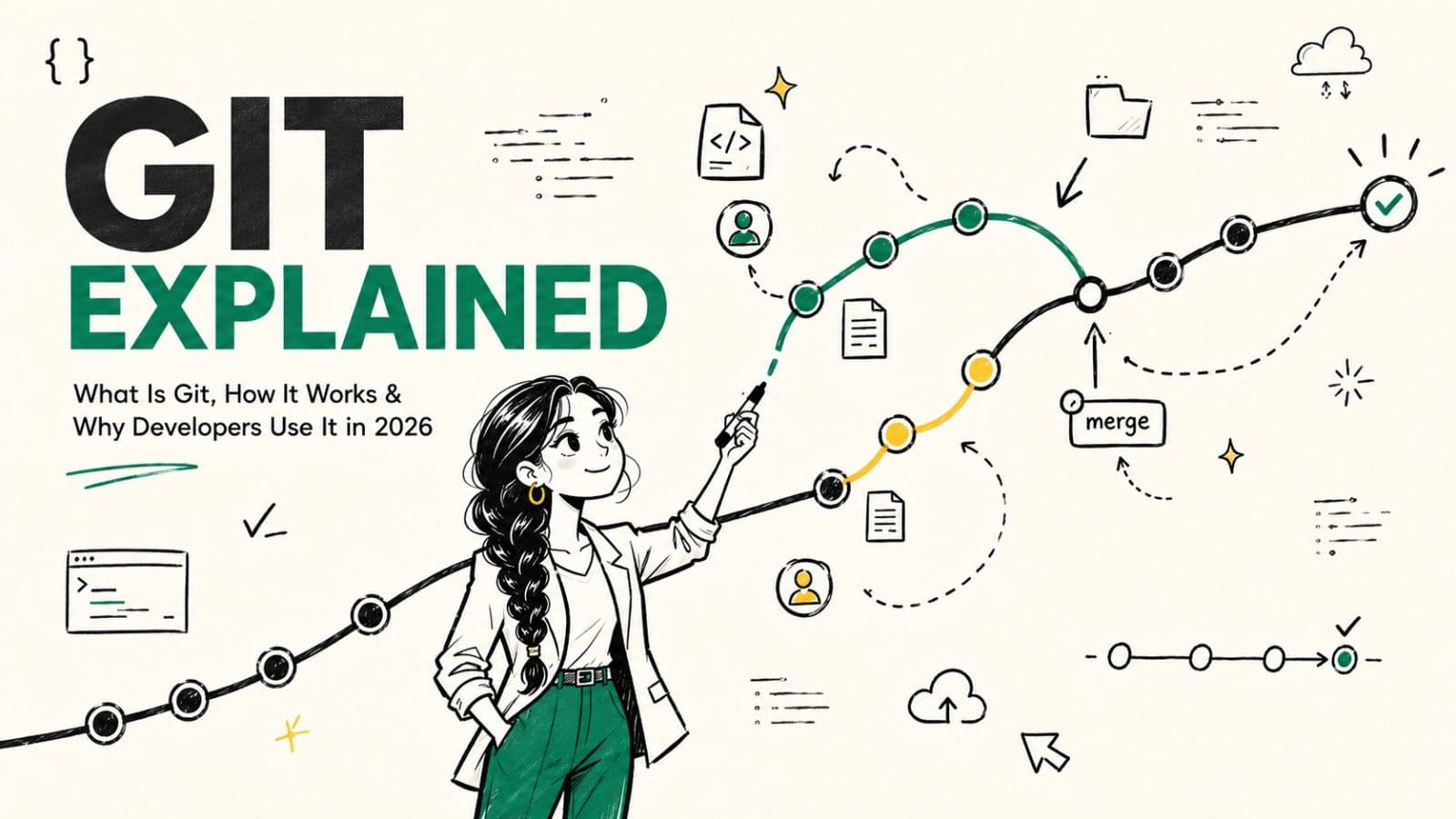
Imagine your college team is building a website for a final-year project.
Five people are working on it.
One person changes the login page. Another updates the database code. Someone adds a new feature. Another developer fixes a bug. Then, while trying to clean up the project, someone accidentally overwrites a working file.
Suddenly, someone asks:
“Wait… what changed?”
Another asks:
“Can we get yesterday’s version back?”
And the classic one:
“Who changed this line?”
Now imagine dealing with that problem on a software project containing thousands of files and hundreds of developers.
This is exactly the kind of problem Git helps solve.
Git gives developers a structured way to track changes, maintain project history, create different lines of development, experiment safely, collaborate with other developers, and recover from mistakes.
And no, Git isn't just a tool DevOps engineers randomly put on their resumes.
Git sits close to the beginning of the modern software delivery process:
Code → Version Control → Testing → Build → Deployment
Once you understand how modern software moves from development to production, you'll notice Git appearing almost everywhere.
So, what is Git, really?
Let's start from the absolute basics.
What Is Git?
In the simplest possible terms:
Git is a distributed version control system that records changes to files and helps developers manage, compare, and collaborate on different versions of a project.
That's the textbook-friendly definition.
Here's the easier version:
Git is like a detailed history system for your project.
Instead of creating folders such as:
project-final
project-final-new
project-final-new-2
project-final-actually-final
project-final-please-work
you can use Git to maintain a structured history of your project.
Git records commits, which represent points in your project's history. It also allows developers to create branches, compare changes, merge work, and synchronize changes with remote repositories.
So if your application worked perfectly yesterday and breaks today, Git gives you tools to investigate what changed.
And that's only the beginning.
Why Was Git Needed in the First Place?
Before learning Git commands, it's worth understanding the problem Git was designed to solve.
Suppose you're building a portfolio website.
On Monday:
- Homepage works
- Login works
- Contact form works
On Tuesday, you redesign the login page.
On Wednesday, you add authentication.
On Thursday, you experiment with a new database implementation.
On Friday, something breaks.
Without version control, you might struggle to determine:
- What changed?
- When did it change?
- Which developer changed it?
- Which changes belong together?
- Which version was working?
- Can you recover an earlier version?
That's where version control becomes useful.
Version control systems record changes to files over time so developers can inspect previous states, collaborate, and manage multiple lines of development.
Git takes that concept and makes it powerful enough to support everything from a student's personal project to large-scale software development.
Git in One Sentence
If you remember only one thing from this article, remember this:
Git tracks the history of your project so developers can change, experiment, review, and collaborate on code safely.
Now let's make that technical.
What Makes Git Different?
Git is a distributed version control system, commonly abbreviated as DVCS.
That phrase can sound complicated when you're just starting.
It isn't.
The important word is distributed.
In a traditional centralized version control model, developers generally depend on a central server for the repository and its history.
Git takes a different approach.
When you clone a Git repository, your local repository contains the Git data and history needed for many operations. You aren't simply working with a thin copy of files that requires a server for every action.
That means many Git operations can happen locally, including:
- inspecting history
- creating commits
- creating branches
- comparing changes
- examining differences
- experimenting with code
You don't need to communicate with a remote server for every one of these operations.
The remote repository becomes important when you want to share and synchronize work with other developers.
This distributed model is one of Git's defining characteristics.
What Is a Git Repository?
A Git repository is the place where Git stores the information it needs to track your project's history.
Think of it as your project's version-control brain.
Suppose you have a project:
my-project/
├── index.html
├── app.js
├── styles.css
└── README.md
You can turn that directory into a Git repository with:
git init
Git creates a hidden .git directory containing the repository information.
Conceptually:
my-project/
├── index.html
├── app.js
├── styles.css
├── README.md
└── .git/
The .git directory is extremely important.
It contains Git's repository data, including objects, references, configuration information, and other metadata used to manage the project's history.
So:
Your source files are your project.
.git is what allows Git to understand and manage that project's history.
Don't casually delete .git.
If you remove it, you're removing the Git repository information associated with that working directory.
The Four Places Beginners Need to Understand
One of the most important Git concepts is understanding where your changes exist.
A simplified Git workflow looks like this:
Working Directory
       ↓
Staging Area
       ↓
Local Repository
       ↓
Remote Repository
Let's understand each one.
1. Working Directory
This is where you actually work.
Suppose your project contains:
login.js
You open the file and add:
validateUser();
At this point, you've modified the file.
The change exists in your working tree, but it isn't automatically part of your Git history.
Git knows that your working tree differs from the state recorded in your latest commit.
2. Staging Area
Now you decide:
“I want this particular change included in my next commit.”
You stage it:
git add login.js
The staging area, technically represented by Git's index, records the content you intend to include in the next commit.
This is useful because you don't necessarily have to commit every change you've made.
For example:
login.js      → staged
README.md     → not staged
test.js       → not staged
You can therefore build a commit intentionally rather than simply dumping every current change into Git history.
3. Local Repository
Once you've staged the desired changes, you create a commit:
git commit -m "Add login validation"
Git records a new point in the project's history based on what you staged.
Think of a commit as a meaningful checkpoint.
For example:
Commit 1 → Create login page
Commit 2 → Add authentication
Commit 3 → Fix login validation
These commits form part of your local project history.
4. Remote Repository
Eventually, you want other developers to have your work.
That's where a remote repository comes in.
You might push your commits using:
git push origin main
The remote repository could be hosted on platforms such as GitHub, GitLab, Bitbucket, or another Git-compatible service.
An important distinction:
Git itself is not GitHub.
We'll come back to that shortly.
How Does Git Actually Work?
Let's follow a realistic example.
Suppose you're developing an e-commerce website.
You discover that the shopping cart calculates discounts incorrectly.
You open:
cart.js
and fix the discount calculation.
Now what happens?
Step 1: Modify the Code
You change cart.js.
Git now sees that the file differs from the state recorded in the repository.
Step 2: Check What Changed
Run:
git status
Git shows you the current state of the working tree.
Step 3: Stage the Change
git add cart.js
Now the change is staged.
Step 4: Commit the Change
git commit -m "Fix cart discount calculation"
The change is now recorded in your local Git history.
Step 5: Push the Change
git push origin main
The commit can now be shared with the remote repository.
The basic workflow becomes:
Edit
  ↓
Check
  ↓
Stage
  ↓
Commit
  ↓
Push
  ↓
Remote Repository
That's the Git workflow beginners should understand before trying to memorize dozens of commands.
Git's Snapshot Model: What Is Git Actually Saving?
Here's where Git becomes more interesting.
A common beginner explanation says:
“Git saves a copy of every file every time you commit.”
That's not a good technical description.
Git's model is better understood in terms of snapshots.
Imagine your project changes over time:
Commit 1 → Project State A
Commit 2 → Project State B
Commit 3 → Project State C
Commit 4 → Project State D
Each commit represents a recorded project state.
Git's internal object model includes objects such as:
- commits
- trees
- blobs
- annotated tags
A blob represents file content.
A tree represents directory structure and references other objects.
A commit connects a project state to its history and includes metadata such as its parent relationship.
You don't need to understand Git's internal object model before writing your first commit.
But understanding that Git isn't simply a folder containing thousands of old copies of your project will help you understand Git more accurately.
Git Commands Every Beginner Should Know
You don't need 50 commands to start using Git.
Start with these:
Command
What it does
When you'd use it
git init
Creates a Git repository
Starting version control in a local project
git clone
Creates a local copy of an existing repository
Joining an existing project
git status
Shows repository state
Checking what changed
git add
Stages changes
Preparing changes for a commit
git commit
Records staged changes
Creating a checkpoint in history
git log
Shows commit history
Reviewing previous changes
git branch
Manages branches
Viewing or creating branches
git switch
Changes branches
Moving between development lines
git merge
Integrates another branch
Combining development work
git fetch
Downloads remote information
Inspecting remote updates
git pull
Fetches and integrates remote changes
Updating your current branch
git push
Sends local changes to a remote
Sharing your work
These commands cover a large part of a beginner's everyday Git workflow.
But knowing the commands isn't enough.
You need to understand why they exist.
Let's Understand the Commands With a Real Project
Suppose you're building a website.
git init
git init
You use this when you have an existing local directory that isn't yet a Git repository.
After initialization, Git can begin tracking the project's history.
git clone
Suppose your team already has a repository.
You can get a local copy with:
git clone <repository-url>
Cloning creates a local repository and establishes information about the remote repository.
Clone vs Pull
This confuses almost everyone initially.
The simple distinction is:
Clone = get the repository for the first time.
Pull = update an existing local repository with remote changes.
Think:
New to the project?
        ↓
    git clone

Already have the project?
        ↓
     git pull
git status
git status
This should become one of your best friends.
It helps you understand:
- which files are modified
- which files are staged
- which files are untracked
- which branch you're currently on
If you're ever unsure what's happening:
Run git status.
Before committing, pushing, or switching branches, knowing the state of your working tree can prevent many avoidable mistakes.
git add
git add app.js
This stages the change.
You can also stage multiple files:
git add .
But don't blindly use git add . without checking what you're staging.
Your project might contain files you don't want in the next commit.
A safer habit is:
git status
then stage intentionally.
git commit
git commit -m "Add user authentication"
A commit records the staged state in your local Git history.
Think of it as:
“This is a meaningful checkpoint in my project.”
Compare:
Bad:
git commit -m "changes"
Better:
git commit -m "Fix login validation error"
Good commit messages make project history much easier to understand.
git log
Want to understand what happened to the project?
Look at its history.
git log
You can also use:
git log --oneline
for a compact history view.
Git's history is built from connected commits, allowing developers to understand how the project evolved.
Git Branching: A Powerful Way to Isolate Work
Imagine your application is already working.
The main branch represents the primary line of development.
Now you're asked to add:
Google Login.
Would you modify the stable code directly?
You could.
But for collaborative development, creating a feature branch is often safer.
You can create one with:
git switch -c google-login
Now you're working on a separate line of development.
You can make commits there:
git add .
git commit -m "Add Google login UI"
Meanwhile, the main branch can continue representing the main line of development.
A simplified picture:
google-login
                      ↓
A ─── B ─── C
       \
        D ─── E
Your feature branch can move forward independently.
Once the feature is ready, it can be integrated into the main line.
This is one of the reasons Git became so useful for collaborative software development.
What Is Git Merge?
Suppose your Google login feature is finished.
You switch back to the main branch:
git switch main
Then integrate the feature:
git merge google-login
Git attempts to combine the histories.
Sometimes the integration is straightforward.
Sometimes it isn't.
That's when you encounter a merge conflict.
What Is a Merge Conflict?
Imagine two developers modify the same part of:
navbar.js
Developer A changes:
buttonText = "Login";
Developer B changes the same line to:
buttonText = "Sign In";
Git sees two changes to the same part of the file.
It cannot confidently determine which version represents the intended final code.
So Git reports a conflict.
That's not Git "breaking."
Git is effectively saying:
“I found two incompatible changes. You need to decide what the final code should be.”
The developer then:
- Opens the conflicting file.
- Reviews both changes.
- Chooses one or combines them.
- Tests the result.
- Stages the resolved file.
- Completes the merge.
The important lesson is:
Merge conflicts are a normal part of collaborative development.
They aren't evidence that Git is unreliable.
They're a consequence of multiple people changing overlapping parts of a project.
Git Merge vs Git Rebase
Eventually you'll hear someone ask:
“Should I merge or rebase?”
For a beginner, don't let this become a rabbit hole.
Merge
Merge integrates one line of development into another.
git merge feature-login
It preserves the existing branch histories and may create a merge commit when necessary.
Rebase
Rebase moves or replays commits onto a different base.
git rebase main
This can produce a more linear-looking history, but it also rewrites commit history.
That's why rebase requires more care.
A useful beginner rule is:
Learn branches and merge first. Understand rebase after you understand Git history.
Git Fetch vs Git Pull
Another classic beginner confusion.
Suppose your teammate has pushed new code to the remote repository.
You want to know what's changed.
git fetch
git fetch origin
Fetch downloads information from the remote repository and updates your local knowledge of remote-tracking branches.
It doesn't automatically integrate those changes into your current branch.
Think:
Fetch = “Show me what changed remotely.”
git pull
git pull
Pull performs a fetch and then integrates the relevant remote changes according to the configured pull behavior.
Think:
Pull = “Get the remote changes and integrate them.”
A simplified mental model:
git fetch

Remote
  ↓
Local knowledge


git pull

Remote
  ↓
Fetch
  ↓
Integration
  ↓
Current branch
Understanding this distinction becomes increasingly important when working on collaborative projects.
Git Push
After making local commits, you may want to share them.
For example:
git push origin feature-login
This sends the relevant local commits and references to the remote repository when the update is allowed.
This is often the point where your local work becomes available to your teammates through the shared remote repository.
A common workflow looks like:
Local branch
     ↓
   commit
     ↓
   push
     ↓
Remote branch
Git vs GitHub: Are They the Same?
No.
This is one of the most important distinctions beginners should understand.
Git
Git is the version-control software.
It runs on your computer and manages your repository and its history.
GitHub
GitHub is a web-based platform for hosting Git repositories and collaborating around them.
Think of it like this:
Git
↓
Version-control engine

GitHub
↓
Repository hosting + collaboration
GitHub isn't the only platform you can use.
Other Git hosting platforms include:
- GitLab
- Bitbucket
- self-hosted Git services
You can absolutely learn Git without GitHub.
However, GitHub is particularly useful for students and developers because it provides a place to host projects and supports collaboration workflows such as pull requests, reviews, issues, and automated workflows.
So remember:
Git ≠ GitHub.
What Is a Pull Request?
A pull request is primarily a collaboration and code-review mechanism provided by Git hosting platforms.
Imagine you've finished your feature branch.
Instead of directly changing main, you push your branch and open a pull request.
Now your teammates can:
- review your code
- discuss the changes
- suggest modifications
- inspect the differences
- run automated checks
- approve the change
- merge the branch
A simplified workflow:
Feature Branch
      ↓
    Push
      ↓
Pull Request
      ↓
 Code Review
      ↓
Automated Checks
      ↓
   Approval
      ↓
    Merge
This is much closer to how Git appears in modern team development than simply running:
git add
git commit
git push
Git provides the version-control foundation.
Platforms such as GitHub provide additional collaboration features around Git repositories.
What Is HEAD in Git?
This sounds more complicated than it actually is.
HEAD generally represents your current position in Git's history.
In ordinary branch-based development, you can think of it roughly like:
HEAD
 ↓
Current Branch
 ↓
Latest Commit
In other words:
“Where am I right now in Git history?”
You'll encounter HEAD frequently when working with commands involving:
git loggit diffgit restoregit resetgit rebase
You don't need to memorize every detail of HEAD on day one.
The basic mental model is enough to get started.
Git Configuration
Git also has configuration settings.
For example:
git config --global user.name "Your Name"
git config --global user.email "you@example.com"
This configures the identity Git associates with your commits.
Git supports configuration at multiple levels, including system, user, and repository-specific configuration.
For most beginners, configuring your name and email is enough to get started.
What Is .gitignore?
Not every file in a project should be committed.
For example, a project might contain:
- dependencies
- build artifacts
- logs
- temporary files
- local configuration
- environment variables
- credentials
A .gitignore file tells Git which untracked files or patterns should be ignored.
For example:
node_modules/
.env
dist/
*.log
This is especially important for modern development projects.
But there's an important security lesson:
.gitignore is not a secret remover.
Suppose you accidentally commit:
.env
containing an API key.
Adding .env to .gitignore afterward doesn't erase the key from commits that already contain it.
If a credential has been exposed, you should treat it as compromised and follow the relevant credential-revocation and rotation process.
Git is excellent at remembering history.
That is useful for code.
It's not useful when that history contains a secret.
How Git Helps You Recover From Mistakes
One of Git's biggest advantages is that mistakes don't always have to be permanent.
Imagine you edit a file and realize:
“I want to undo my local changes.”
Git provides commands for working with changes at different stages.
For example:
git restore <file>
can restore a file in situations where you want to discard certain working-tree changes.
You can also unstage changes with:
git restore --staged <file>
And if you've just created a commit and realize you forgot something, you may be able to amend it:
git commit --amend
Git has many recovery and undo mechanisms.
However, commands that rewrite history or discard changes should be used carefully.
A good beginner habit is:
Before running a destructive Git command, understand exactly which changes it will affect.
A Real Developer Git Workflow
Let's put everything together.
Imagine a team is building an online learning platform.
The application is stored in a remote Git repository.
A developer receives a new task:
Build a course search feature.
Their workflow might look roughly like this:
Clone Repository
       ↓
Create Feature Branch
       ↓
Write Code
       ↓
Run Tests
       ↓
git status
       ↓
git add
       ↓
git commit
       ↓
git push
       ↓
Open Pull Request
       ↓
Code Review
       ↓
Automated Checks
       ↓
Merge
This is much closer to real software development than memorizing individual Git commands.
Git becomes part of a larger engineering workflow.
Git in DevOps: Why Does Git Matter So Much?
This is where Git becomes particularly important for aspiring DevOps engineers.
But let's clarify something first.
Git doesn't perform your entire DevOps pipeline.
Git tracks source code and its history.
Other tools can respond to changes in a Git repository and automate what happens next.
For example:
Developer
    ↓
git push
    ↓
Git Repository
    ↓
CI/CD System
    ↓
Build
    ↓
Automated Tests
    ↓
Package / Containerize
    ↓
Deploy
    ↓
Cloud / Kubernetes
Tools such as GitHub Actions and Jenkins can work with Git repositories to automate parts of this process.
A workflow could look like:
Developer
    ↓
Git Commit
    ↓
Git Push
    ↓
Git Repository
    ↓
Jenkins / GitHub Actions
    ↓
Automated Tests
    ↓
Docker Build
    ↓
Container Image
    ↓
Deployment
    ↓
Cloud / Kubernetes
Notice something important:
Git isn't building the Docker image.
Git isn't running Kubernetes.
Git isn't deploying your application.
Git provides the version-controlled source and history that these automated systems can work from.
That's why Git is such an important DevOps foundation.
Git and CI/CD
Modern CI/CD pipelines often begin when something happens in a source-code repository.
For example:
git push
   ↓
Repository Event
   ↓
CI Workflow
   ↓
Install Dependencies
   ↓
Run Tests
   ↓
Build Application
   ↓
Build Container
   ↓
Deploy
A CI/CD system can detect repository events and execute automated workflows.
This creates a connection between software development and operations:
Developer changes code → Git records it → automation validates it → deployment processes can run.
Git therefore becomes more than a place to store code.
It can become a key event source in an automated software delivery system.
Git and Infrastructure as Code
Git isn't only useful for application source code.
DevOps teams also manage infrastructure configuration as code.
For example, a repository might contain:
infrastructure/
├── main.tf
├── variables.tf
└── outputs.tf
These Terraform files can be version-controlled with Git.
The same principle applies to:
- Terraform
- Kubernetes manifests
- Ansible playbooks
- CI/CD configuration
- application configuration
- infrastructure definitions
A simplified workflow:
Infrastructure Configuration
          ↓
          Git
          ↓
      Code Review
          ↓
   Automated Validation
          ↓
 Infrastructure Change
This gives teams:
- change history
- traceability
- collaboration
- review
- rollback points
This is also closely related to GitOps, where Git repositories can serve as a version-controlled source of truth around which automated infrastructure and application delivery workflows are built.
Again, the important distinction is:
Git doesn't manage infrastructure by itself.
It provides version control around the configuration and history that automation systems can use.
Why Do Developers Use Git?
Let's move beyond commands.
Why do developers actually care about Git?
1. Tracking Changes
Developers can inspect what changed instead of relying on memory.
2. Collaboration
Multiple developers can work on different branches and integrate their work later.
3. Experimentation
Want to try a completely different implementation?
Create a branch.
You can experiment without immediately changing the main line of development.
4. Project History
When something breaks, Git history provides context about how the project reached its current state.
5. Code Review
Branch-based workflows support pull requests and review before changes reach important branches.
6. Recovery
Git provides tools for examining history and recovering or reverting changes when appropriate.
7. Distributed Development
Because Git repositories contain substantial data locally, many operations can be performed without constantly communicating with a remote server.
8. Automation
Repository changes can become triggers for CI/CD systems.
That's a major reason Git fits naturally into modern DevOps workflows.
Why Is Git Still Important in 2026?
Technology changes extremely quickly.
AI coding assistants are becoming more capable.
Cloud platforms continue to evolve.
Kubernetes, CI/CD systems, Infrastructure as Code tools, and developer platforms continue to change.
So a reasonable question is:
Why should a student still spend time learning Git in 2026?
Because the fundamental problem hasn't disappeared.
Software still changes.
Teams still need to understand:
- what changed
- who changed it
- when it changed
- which changes belong together
- how changes are reviewed
- how different development lines are managed
- how changes are integrated
- how code moves into automated delivery workflows
AI-assisted development doesn't remove these problems.
If anything, when developers can generate or modify code more quickly, understanding and reviewing changes becomes increasingly important as a practical engineering skill.
The valuable skill isn't:
“I memorized 30 Git commands.”
It's:
“I understand version control and can use Git confidently in a real development workflow.”
That's a much stronger foundation.
Should Students Learn Git?
Yes.
Especially if you're planning to work in:
- software development
- web development
- DevOps
- cloud engineering
- automation
- open-source development
- data engineering
- infrastructure engineering
But don't learn Git by memorizing commands for an exam.
Learn it by actually using it.
Suppose you're building a weather application.
Try this:
Create Project
      ↓
git init
      ↓
Build Version 1
      ↓
Commit
      ↓
Create Feature Branch
      ↓
Add Weather API
      ↓
Commit
      ↓
Push to GitHub
      ↓
Open Pull Request
      ↓
Review Changes
      ↓
Merge
Now you're not just learning commands.
You're learning a development workflow.
How Students Can Use Git to Build Better Portfolios
A GitHub project can demonstrate more than:
“I know Python.”
A well-maintained repository can provide evidence of how you actually build software.
For example:
my-devops-project/
│
├── app/
├── Dockerfile
├── README.md
├── .gitignore
├── .github/
│   └── workflows/
└── infrastructure/
A project like this can potentially demonstrate:
- meaningful commits
- documentation
- incremental development
- testing
- CI/CD configuration
- containerization
- infrastructure configuration
The goal isn't to make your repository artificially complicated.
You don't need 15 branches and 200 commits just to make your GitHub profile look impressive.
The goal is to make your actual development process visible.
Good documentation and genuine project history are much more valuable than artificial complexity.
8 Common Git Mistakes Beginners Make
Git becomes much easier once you understand the mistakes to avoid.
1. Making Huge, Meaningless Commits
This:
git commit -m "final"
doesn't tell future-you much.
Prefer logical commits such as:
git commit -m "Add email validation to registration"
A good commit represents a meaningful unit of change.
2. Working Directly on Main for Everything
For a small personal experiment, working directly on main may be perfectly reasonable.
For collaborative projects, feature branches can provide a safer workflow.
The goal isn't to create branches for the sake of creating branches.
The goal is to isolate changes when doing so improves collaboration and safety.
3. Not Checking git status
Before staging, committing, or switching branches, check:
git status
It takes seconds and can prevent avoidable mistakes.
4. Confusing Git With GitHub
Remember:
Git ≠ GitHub
Git is the version-control software.
GitHub is a platform built around Git repositories and collaboration.
5. Treating Merge Conflicts Like a Disaster
A merge conflict isn't Git destroying your project.
It's Git telling you that it found competing changes that require a human decision.
Read the conflict.
Understand both changes.
Resolve it intentionally.
Then test your code.
6. Ignoring .gitignore
Don't casually commit:
node_modules/
.env
dist/
*.log
or other generated, local, or sensitive files when they don't belong in the repository.
7. Committing Secrets
Never casually commit:
- API keys
- passwords
- private credentials
- cloud access keys
- authentication tokens
- other sensitive secrets
into a repository.
Especially not a public repository.
If a secret is accidentally committed, adding it to .gitignore afterward doesn't make the exposure disappear.
Rotate or revoke compromised credentials and clean up the repository appropriately.
8. Running Commands Without Understanding Their Effect
This is one of the most dangerous beginner habits.
Git has powerful commands that can:
- rewrite history
- discard changes
- move branch references
- alter commits
Don't copy a command from a random tutorial simply because someone says:
“Run this and it will fix everything.”
Understand what the command will change first.
Git Workflow Cheat Sheet
For a beginner project, this mental model is enough to get started.
# Create a repository
git init

# Clone an existing repository
git clone <repository-url>

# Check changes
git status

# Stage a file
git add app.js

# Stage multiple changes
git add .

# Save a checkpoint
git commit -m "Add login page"

# Create a feature branch
git switch -c login-feature

# View history
git log --oneline

# Fetch remote changes
git fetch

# Integrate remote changes
git pull

# Push your branch
git push origin login-feature

# Switch branches
git switch main

# Merge a branch
git merge login-feature
Don't try to memorize everything at once.
Understand why each command exists.
The syntax will become familiar through repetition.
Git for Beginners: What Should You Learn First?
If you're completely new to Git, don't try to learn advanced commands immediately.
Follow a progression.
Stage 1: Understand the Core Concepts
Learn:
- version control
- repository
- working directory
- staging area
- commit
- local repository
- remote repository
Stage 2: Learn Everyday Commands
Focus on:
git init
git clone
git status
git add
git commit
git log
Stage 3: Learn Branching
Then learn:
git branch
git switch
git merge
merge conflicts
Stage 4: Learn Remote Collaboration
Understand:
- remote repositories
origingit pushgit fetchgit pull- GitHub
- pull requests
- code review
Stage 5: Learn More Advanced Git
Once the fundamentals are comfortable, explore:
- rebase
- reset
- restore
- cherry-pick
- stash
- tags
- reflog
Stage 6: Connect Git to DevOps
This is where the bigger picture starts making sense:
Git
 ↓
GitHub / GitLab
 ↓
CI/CD
 ↓
Docker
 ↓
Cloud
 ↓
Kubernetes
 ↓
Terraform
 ↓
Monitoring
That progression makes much more sense than trying to learn Kubernetes commands before understanding how source code gets managed and delivered.
Frequently Asked Questions About Git
What is Git in simple words?
Git is a version control system that records changes to a project, allowing developers to manage history, create branches, collaborate, and recover from mistakes.
Is Git a programming language?
No.
Git is version-control software.
It is a tool developers use to track and manage changes to files and projects.
Is Git the same as GitHub?
No.
Git is the version-control system.
GitHub is a platform that hosts Git repositories and provides collaboration features such as pull requests, code review, issues, and automated workflows.
Why do developers use Git?
Developers use Git to track changes, maintain project history, create branches, collaborate, review code, experiment safely, and integrate source code with automated development workflows.
Is Git difficult for beginners?
The basic Git workflow is relatively small.
Start by understanding:
- working directory
- staging area
- commits
- branches
- remote repositories
- push and pull
Advanced Git concepts can be learned later.
What are the most important Git commands?
Beginners should start with:
git init
git clone
git status
git add
git commit
git log
git branch
git switch
git merge
git fetch
git pull
git push
You don't need to master all of Git before building your first project.
What is a Git repository?
A Git repository contains the Git data, history, references, and metadata used to track a project's changes.
A normal repository also has a working tree containing the files you edit.
What is a Git commit?
A Git commit is a recorded point in project history based on the content staged for the commit, together with metadata and its relationship to previous commits.
Think of it as a meaningful checkpoint.
What is a Git branch?
A Git branch is a line of development.
Branches allow developers to work on features, fixes, or experiments separately before integrating those changes into another branch.
What is the difference between Git pull and Git fetch?
git fetch downloads information from a remote repository without automatically integrating those changes into your current branch.
git pull performs a fetch and then integrates the relevant remote changes according to the configured behavior.
What is the difference between Git and GitHub?
Git is version-control software.
GitHub is a platform for hosting Git repositories and collaborating around them.
What is a merge conflict?
A merge conflict occurs when Git encounters competing changes that it cannot automatically reconcile.
A developer must inspect the conflicting changes and decide what the final code should be.
What is Git rebase?
Git rebase replays commits onto a different base, which can create a more linear history but also rewrites commit history.
Beginners should understand commits and branches before learning rebase deeply.
Why is Git important in DevOps?
Git provides version-controlled source code and history that CI/CD systems and other DevOps tools can consume.
Repository changes can trigger automated processes such as testing, building, packaging, and deployment.
Can I learn Git without knowing DevOps?
Absolutely.
Git is useful independently of DevOps.
You can use it for:
- web development
- software engineering
- personal projects
- open-source projects
- documentation
- research
- collaborative programming
DevOps simply adds another important context in which Git is heavily used.
Should students learn Git in 2026?
Yes.
If you're building software projects, working with other developers, learning DevOps, or preparing for modern software engineering workflows, Git is a foundational skill worth learning.
So, What Is Git Really?
If you've made it this far, forget the complicated definitions for a moment.
Imagine your project as a story.
Your code changes every day.
Git keeps track of that story.
It gives you:
Checkpoints through commits.
Different paths through branches.
A history of how the project evolved.
A way to combine work through merging.
A way to collaborate through remote repositories.
A way to review changes through workflows such as pull requests.
And most importantly, it gives developers confidence to change code without feeling like every experiment could permanently destroy yesterday's working version.
That's why Git isn't simply another command-line tool to memorize.
Git is a system for managing change in software.
Git Is Only the Beginning of Your DevOps Journey
If you're learning DevOps, Git is one of those fundamentals that makes everything else easier to connect.
Once you understand:
Code
 ↓
Git
 ↓
CI/CD
 ↓
Docker
 ↓
Cloud
 ↓
Kubernetes
 ↓
Infrastructure as Code
 ↓
Monitoring
the DevOps ecosystem starts looking less like a giant collection of random tools and more like one connected system.
Git manages the history of your code.
CI/CD automates validation and delivery.
Docker packages applications.
Cloud platforms provide infrastructure and services.
Kubernetes can orchestrate containerized workloads.
Terraform can define infrastructure as code.
Monitoring helps teams understand what is happening in running systems.
The real goal isn't to memorize every tool.
It's to understand how these tools work together.
If you're ready to go beyond Git and build that broader skill set, Eduwise Solutions' Master DevOps + Multi-Cloud with Gen AI program covers areas including Git, Jenkins, Docker, Kubernetes, Terraform, Ansible, AWS, monitoring, and related DevOps technologies through practical, hands-on learning.
Git is the beginning. The bigger skill is understanding how modern software moves from code to production.
Ready to build this skill?
Explore hands-on programs designed to take you from fundamentals to job-ready.
Explore Courses